

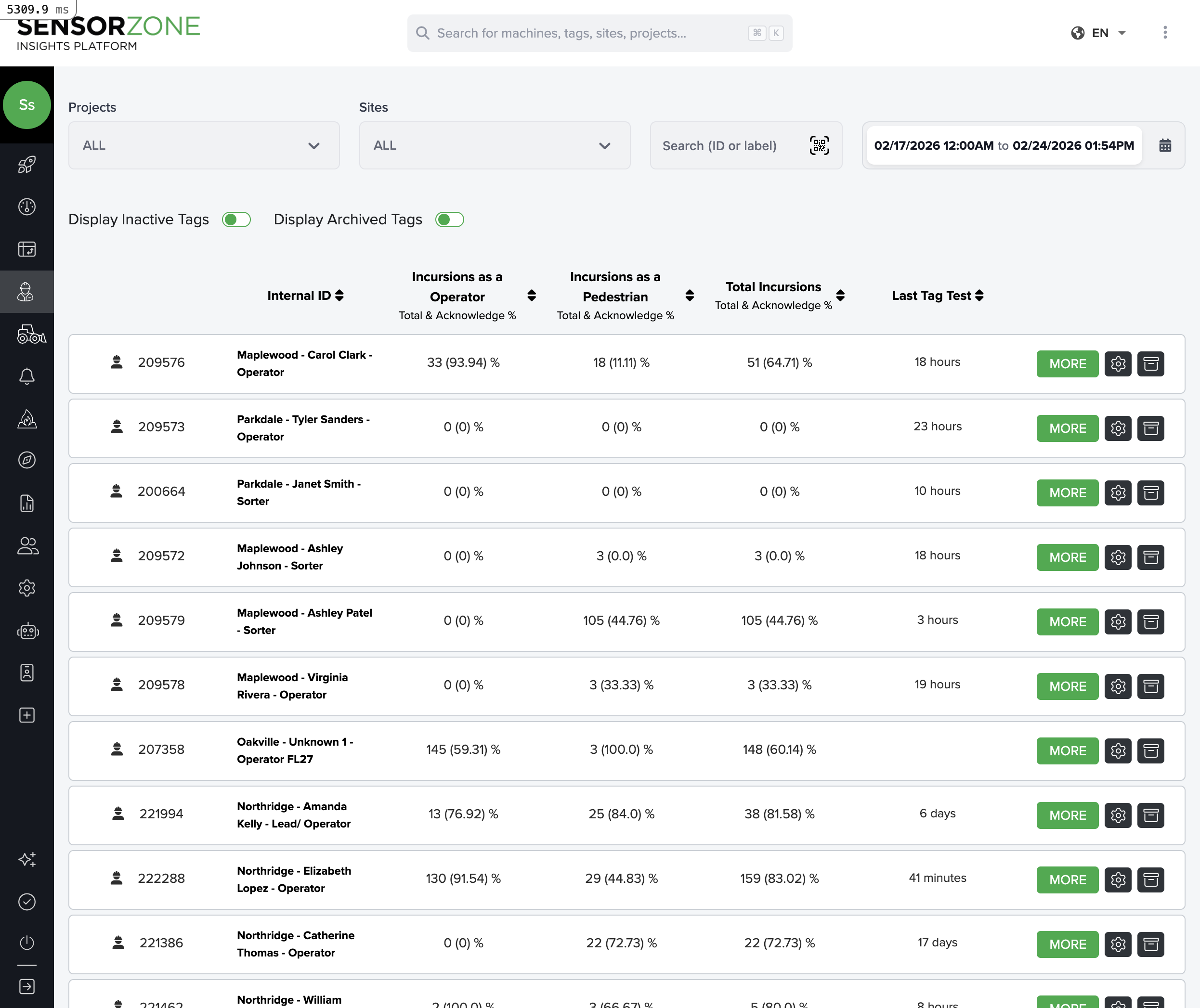
People list
The main table displays one row per tag, showing:- Name / Serial Number — The person’s name (if assigned) and the tag’s serial number
- Total Incursions — Incursion count for the selected period
- Acknowledged / Unacknowledged — Breakdown by acknowledgment status
- Last Activity — When the tag was last active
- Days Since Test — How many days since the tag was last tested
Person detail page
Click any row to open the person’s detail page. This page has three tabs providing a complete safety profile:- Pedestrian Overview — Incursions while on foot, machine interactions, incursion heatmap
- Operator Overview — Incursions while operating machinery, runtime data, acknowledgement performance
- Tag Testing — Test calendar, compliance streak, test history
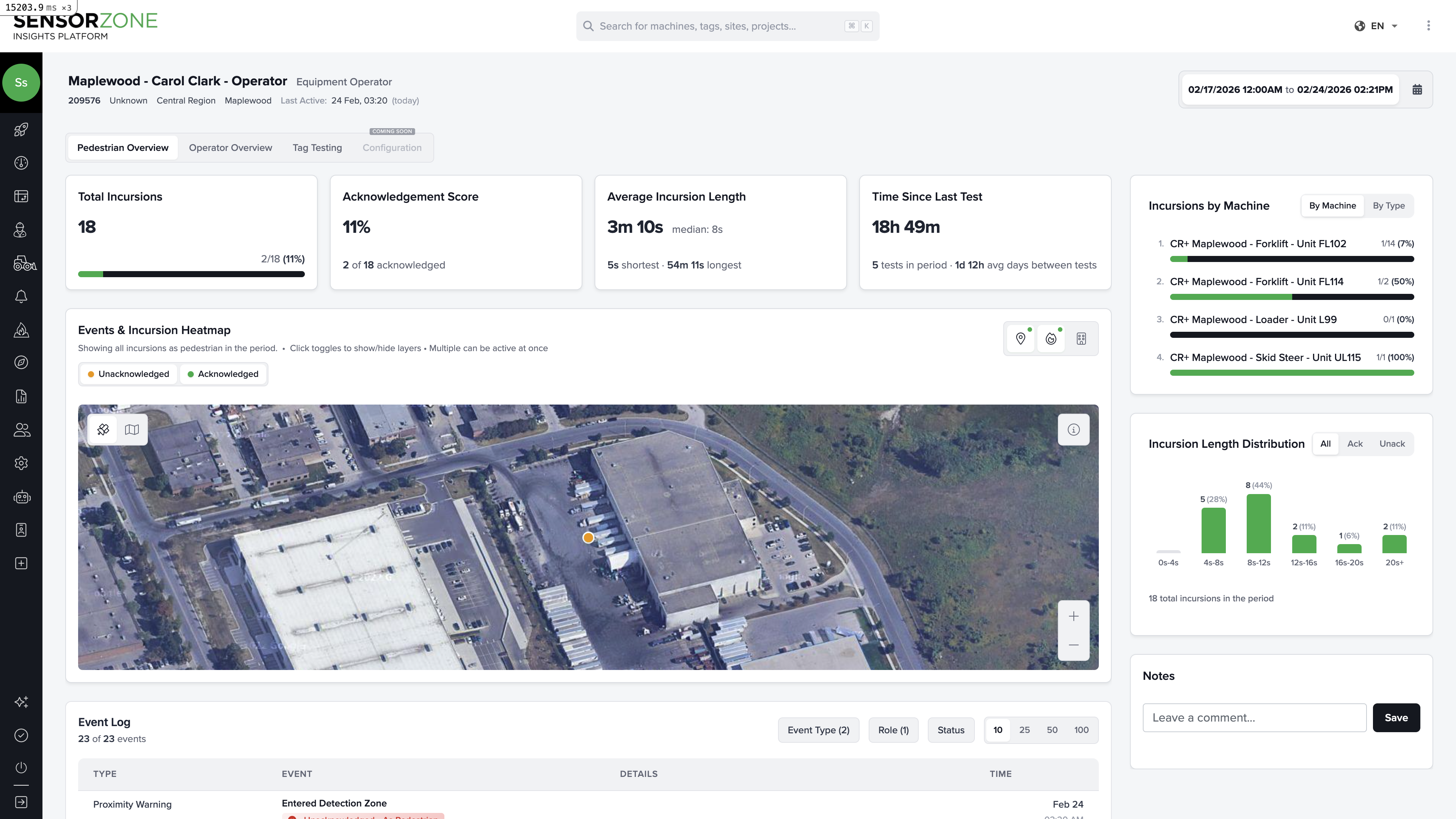
Full Person Detail Guide
See the complete walkthrough of all three tabs, including KPI explanations, maps, and how to use each view for safety analysis.
Managing people assets
People records are managed separately from tag hardware through the Assets section in Settings.Create a person
- Go to Settings > People Assets
- Click Add Person
- Enter name, employee ID, email, and company
- Select kind: Staff (permanent) or Visitor (temporary)
- Save
Assign a tag to a person
- Navigate to the tag’s detail page
- Click Assign Person
- Search for and select the person
- Confirm the assignment
Archive a person
When someone leaves the organization, archive their record rather than deleting it. This preserves all historical data while removing them from active lists.Notes
You can add notes to any person’s record by clicking Add Note on their detail page. Notes include an author name, text content, and timestamp. Use notes to document safety conversations, training dates, or incident details.Next steps
Machines
Monitor base stations and fleet equipment.
Reports
Generate safety reports for compliance.