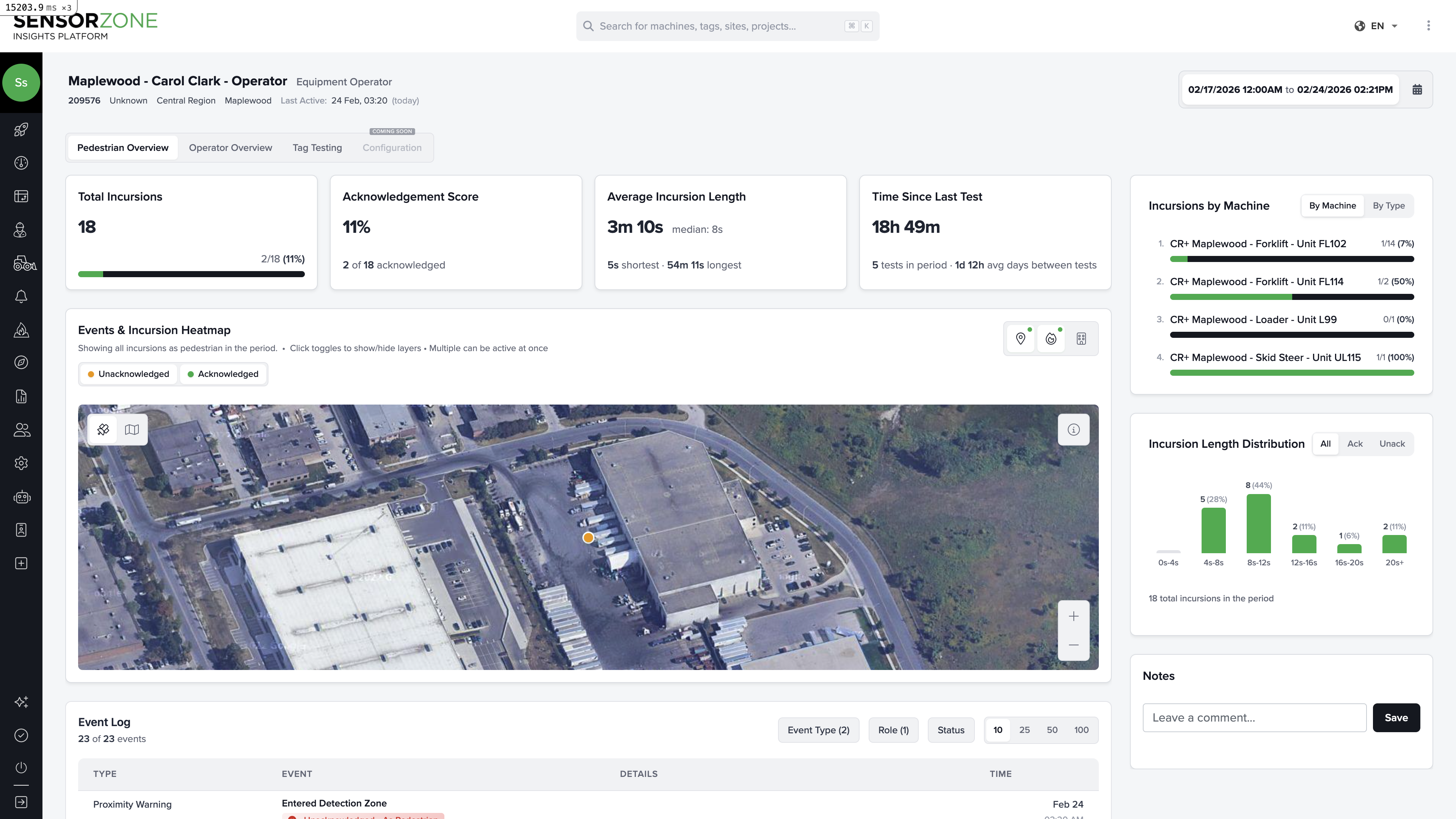
When you click a person’s name or the MORE button on the People page, you open their detail page. This page has three tabs that give you a complete picture of their safety interactions on site.
Pedestrian Overview
The default tab shows this person’s record as a pedestrian — that is, when they were on foot near machines.
KPI cards
| Metric | What it tells you |
|---|
| Total Incursions | How many times this person triggered a proximity event while on foot |
| Acknowledgement Score | Percentage of incursions where the machine operator acknowledged the warning |
| Average Incursion Length | How long, on average, this person remained in the danger zone |
| Time Since Last Test | How recently this person’s tag was tested |
Events and incursion heatmap
The satellite map shows the geographic location of each incursion event, color-coded by acknowledgement status:
- Green markers — Acknowledged incursions
- Orange/Red markers — Unacknowledged incursions
Zoom in to see exactly where on the worksite events occurred. Clusters often indicate high-traffic crossing points or areas where pedestrians regularly interact with machinery.
Machine interactions
The sidebar shows which machines this person interacted with most. This helps you identify whether a specific machine or area is driving most of the risk for this individual.
Incursion length distribution
A histogram showing the spread of incursion durations. Short incursions (a few seconds) are typically walk-by events, while longer ones may indicate someone working in close proximity to a machine.
Event log
A chronological list of every event — incursions and tag tests — with timestamps, machine involved, duration, and acknowledgement status.
Operator Overview
Switch to the Operator tab to see this person’s record as a machine operator — when they were driving or operating equipment.
Operator KPI cards
| Metric | What it tells you |
|---|
| Total Incursions | How many proximity events occurred while this person was operating a machine |
| Incursions per Runtime Hour | Normalized rate — accounts for how many hours the operator ran the machine |
| Average Incursion Length | Average time a pedestrian remained in the detection zone |
| Avg Time to Acknowledge | How quickly the operator acknowledged proximity warnings |
Top pedestrians
The sidebar lists which pedestrians this operator encountered most. If one person keeps appearing, it may indicate a workflow issue (e.g., a spotter who stands too close, or a route that crosses the machine’s path).
Runtime by day
A chart showing when and how long this operator ran their machine each day. Useful for understanding shift patterns and correlating with incursion activity.
Acknowledgement time distribution
Shows how quickly the operator responds to warnings. Fast acknowledgement times indicate good awareness. Slow or missing acknowledgements may warrant additional training.
Tag Testing
The Testing tab tracks this person’s tag testing compliance.
Testing KPI cards
| Metric | What it tells you |
|---|
| Total Tests | Number of tag tests performed in the period |
| Time Since Last Test | How long ago the most recent test occurred |
| Avg Test Interval | Average gap between consecutive tests |
| Testing Streak | Current consecutive days with at least one test |
Testing activity chart
A calendar-style heatmap showing which days had tag tests. Green cells indicate tests were performed; gaps indicate missed testing days.
Test event log
A chronological list of every tag test, showing the date, time, and which base station was used for the test.
Use the testing tab during daily safety briefings to quickly verify which tags have been tested and which need attention before work begins.
Notes
All three tabs share a Notes section in the sidebar. Use it to document safety conversations, training records, or observations about this person’s behavior on site. Notes include an author name, content, and timestamp.

Next steps