

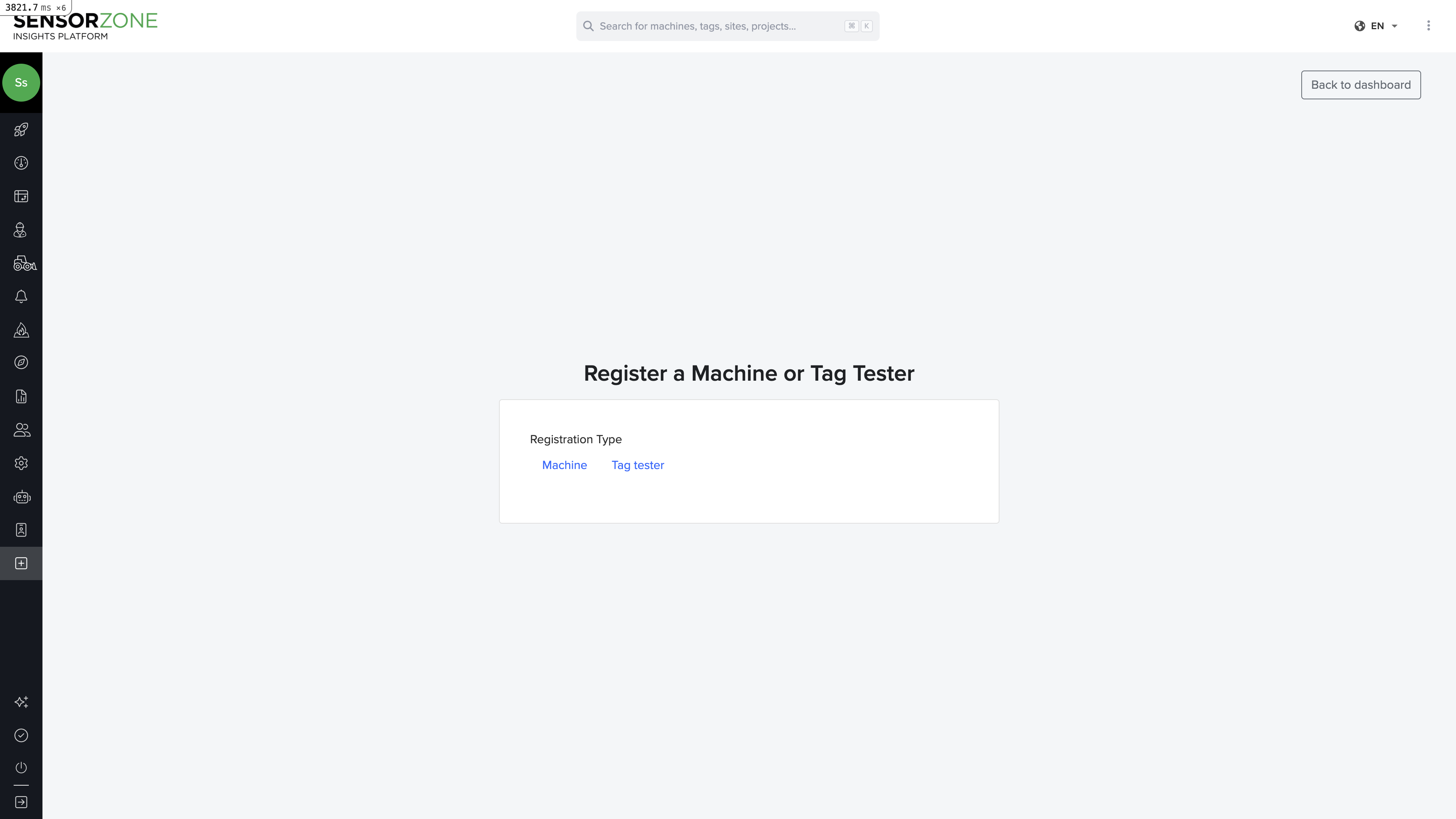
Registration types
Choose between two device types using the tabs at the top of the form:Machine
Register a base station (PWS) installed on a machine. This is the most common registration type. Required fields:- Base Station SSID — The unique identifier of the PWS hardware
- Name / Internal ID — A human-readable label for the machine (e.g., “Excavator 12” or “Unit 908M”)
- Machine Type — Select from available types (excavator, loader, crane, truck, etc.)
- Connectivity Module ID — 7-digit ID for Trackunit/telematics integration
- Serial Number — The machine’s manufacturer serial number
- Manufacturer — Equipment manufacturer name
- Year of Manufacture — Production year
- Machine Serial Number — Official serial number from the manufacturer
- Number Plate — Vehicle registration plate
- Machine Owner — Owner company name
- DVR ID — ID of the connected video recorder
- Camera 1-4 Labels — Assign labels to each camera position (front, rear, left, right)
- Latch Worksite — Whether the machine should auto-associate with the nearest worksite
Tag Tester
Register a dedicated tag tester device used for testing tags in the field.Add machine details
Enter a name, select the machine type, and fill in optional details like manufacturer and serial number.
Configure cameras (optional)
If the machine has a Vision 360 camera system, enter the DVR ID and assign camera labels.
After registration, the device must be physically powered on and within cellular coverage to start reporting data. You should see it appear as “Online” in the Machines list within a few minutes.
After registration
Once a device is registered:- It appears in the Machines list
- Assign it to a Machine Asset in Settings if you want to track equipment independently from the hardware
- Verify it’s receiving data by checking the Machine Insights tab on its detail page for connectivity status
Next steps
Machines
View and manage your registered machines.
Settings
Manage machine assets and device assignments.