

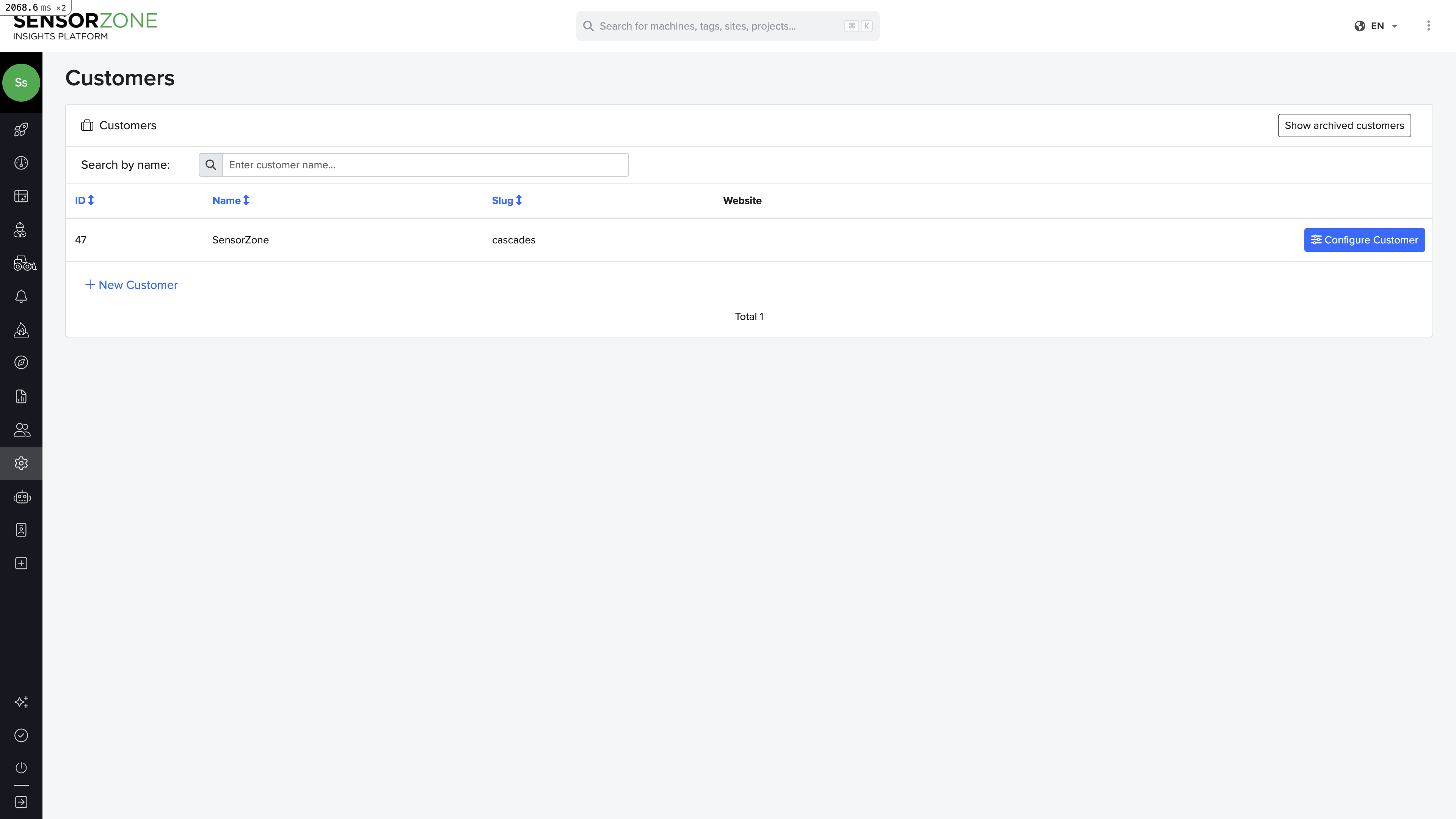
Account settings
Brand configuration
Your brand represents your organization in SensorZone. Brand settings include:- Name — Your organization’s display name
- Logo — Uploaded logo displayed in the navigation
- Date format — Choose between DD/MM/YYYY and MM/DD/YYYY
User management
Administrators can manage user accounts from the Users page.- Invite users — Send email invitations to new users
- Manage roles — Assign permissions (admin, standard user)
- Deactivate users — Remove access without deleting the account
Users receive an email invitation with a link to set their password and complete registration.
People Assets
Manage your personnel registry independently from tag hardware:- Add person — Create a new staff or visitor record with name, employee ID, email, and company
- Edit — Update person details
- Archive / Restore — Soft-delete records while preserving history
Machine Assets
Manage your vehicle and equipment registry:- Add machine — Create a new machine record with serial number, manufacturer, year, and number plate
- Edit — Update machine details
- Archive / Restore — Soft-delete records while preserving history
Device settings
Configure device-specific behavior:- Tag settings — Testing interval requirements, battery thresholds
- Base station settings — Communication parameters, reporting intervals
Single Sign-On (SSO)
If your organization uses an identity provider (Okta, Azure AD, Google Workspace, etc.), you can configure SSO so users sign in with their corporate credentials — no separate SensorZone password required. SensorZone supports SAML 2.0, OIDC, and SCIM provisioning through Stytch B2B authentication.- Navigate to Settings > SSO
- Enable SSO and select your provider
- Enter the Connection ID and email domain
- Test the connection
Full SSO Setup Guide
See the complete SSO documentation with step-by-step setup instructions for Okta, Azure AD, Google Workspace, SCIM provisioning, and troubleshooting.
API tokens
For integrations and tester devices, you can generate API tokens:- Navigate to the device’s edit page
- Click Generate Token
- Copy and securely store the token
Next steps
SSO Setup
Configure Single Sign-On for your organization.
API Reference
Explore the SensorZone API.