

Viewing worksites
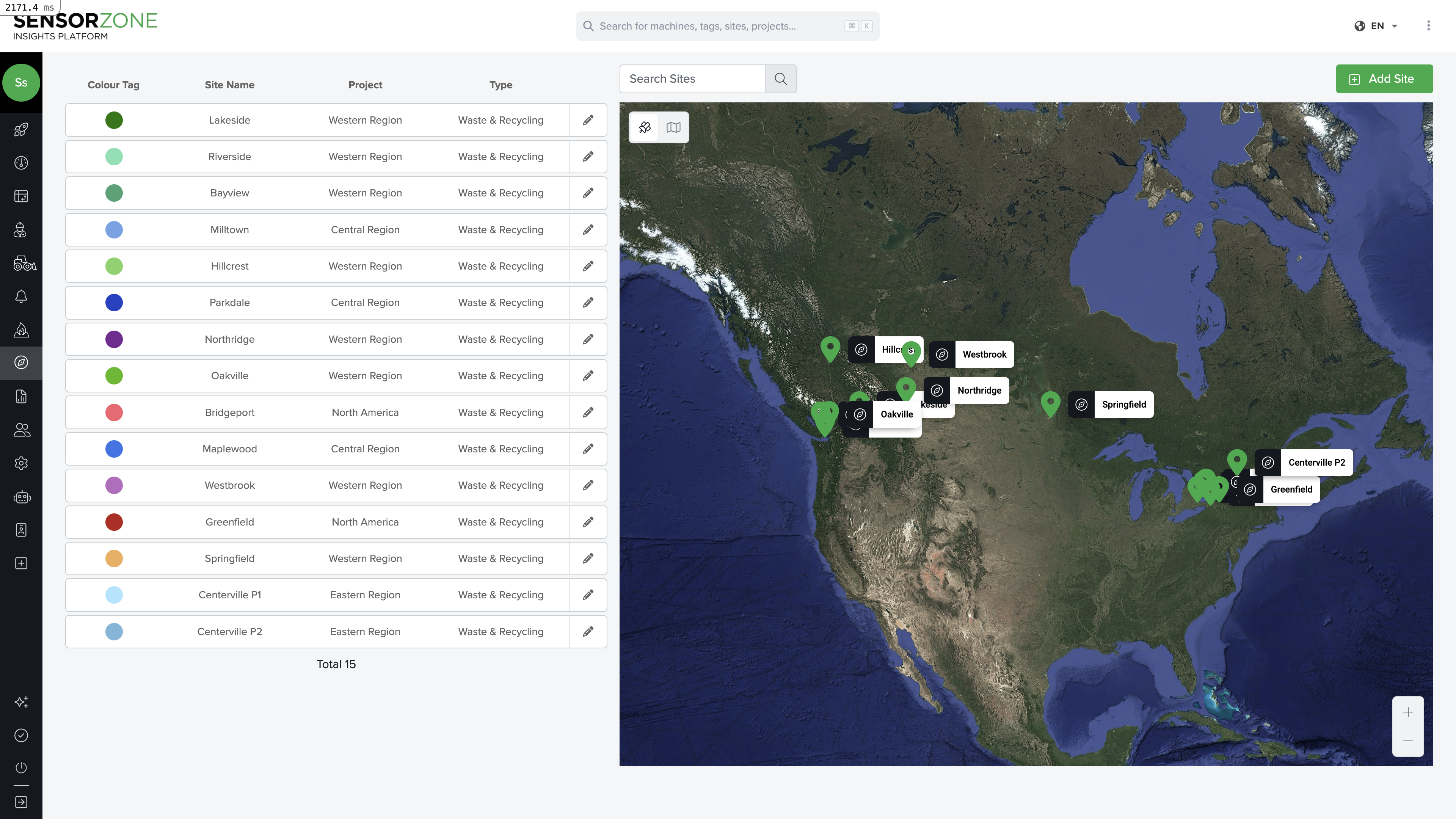
Navigate to the Sites page to see all worksites plotted on an interactive map. Each worksite appears as a colored polygon or circle. The sidebar lists all sites with their names, projects, and types. Click any worksite on the map or in the list to view its details.Creating a worksite
Draw the boundary
Use the polygon tool to draw the worksite boundary on the map. Click to place each vertex, and close the polygon by clicking the first point again.Alternatively, use the circle tool for simpler zones.
Configure the site
Enter a name for the site, select a color for map display, and choose the project it belongs to.
Worksite boundaries use GeoJSON polygons. The system validates that polygons are valid (no self-intersections). If you see an “Invalid polygon” error, check that your boundary lines don’t cross each other.
Editing a worksite
Click any site, then click Edit to open the worksite editor.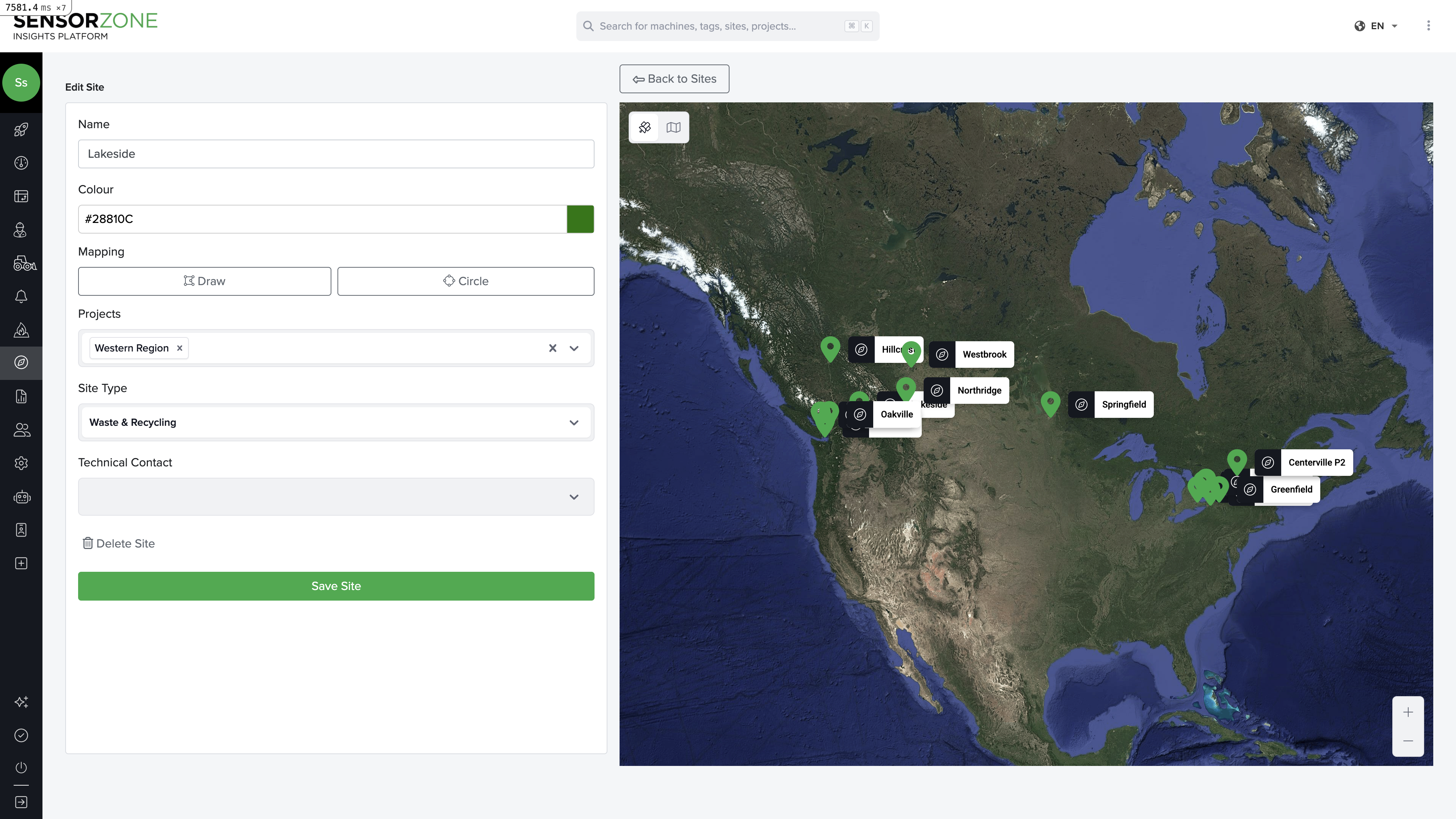
- Name — Human-readable label for the site (max 100 characters)
- Colour — Color picker for map display. Choose a distinctive color so sites are easy to identify at a glance
- Mapping tools — Draw (polygon) and Circle buttons to define or redraw the boundary. Drag vertices on the map to adjust
- Projects — Assign the site to one or more projects. You can create new projects inline
- Site Type — Categorize the site: Infrastructure, Residential Construction, Commercial Construction, Rail Maintenance, Waste & Recycling, Agriculture, Forestry, Logistics, or Other
- Technical Contact — Optionally assign a technical contact for the site
Deleting a worksite
- Open the site’s detail view
- Click Delete
- Confirm the deletion
Assigning sites to projects
Each worksite belongs to exactly one project. To change the assignment:- Edit the worksite
- Select a different project from the dropdown
- Save
Next steps
Heat Map
Visualize incursion density across your sites.
Alerts
Set up notifications for safety events.